
There is a monitor in my garage with a crack across the bottom third. It was not dropped. It simply gave up, the way old things do, and I have kept it because it reminds me of something important: nobody in this house ever chose a monitor. They inherited them. A hand-me-down from an office. A bundle deal. A screen that came free with a tower in 2019 and has been quietly ruining someone's neck ever since.
You are about to spend real money on a thing you will look at for six hours a day, every day, for five or six years. Let us do it properly. Sit down.
I am not going to tell you which monitor to buy. Panels change every nine months and any list I write goes stale before your shipping confirmation arrives. I am going to teach you to read the specification sheet, which does not go stale, and which is the only skill that matters here.
Start with pixel density. Everything else is downstream.
Everyone starts with screen size. This is the wrong end of the problem. What your eyes actually care about is pixel density — how many pixels are packed into each inch of glass. The number is PPI, and you can work it out yourself.
The four combinations that matter
- 24 inch, 1920×1080 — about 92 PPI. Sharp. Correct. Unfashionable.
- 27 inch, 1920×1080 — about 82 PPI. You will see the pixels. Do not do this.
- 27 inch, 2560×1440 — about 109 PPI. The sweet spot for desk work.
- 32 inch, 3840×2160 — about 138 PPI. Excellent, and requires display scaling.
That second line is the mistake nearly everyone makes. A 27-inch 1080p monitor is cheap because it is the same number of pixels stretched over more glass. Text edges go soft. You will not be able to name what is wrong, you will simply be tired at four in the afternoon.
If you take one thing: 24 inches wants 1080p. 27 inches wants 1440p. 32 inches wants 4K. Match the pair and stop reading spec sheets.
Panel type: there are three answers and only one of them is yours
IPS. The answer is IPS. I will explain the others so you know what you are refusing.
VA panels have deeper blacks and worse off-angle colour — move your head and the corners shift. Fine for a television across a room, irritating eighteen inches from your face. TN panels are fast and cheap and their colour is a rumour; they exist for competitive gaming, which is not what you are doing between two spreadsheets. OLED is genuinely beautiful and genuinely risky for this job, because desk work means a taskbar and a toolbar sitting in the same pixels for six hours a day, and static things are how OLED panels age badly.
IPS gives you consistent colour, sane viewing angles, and a panel that does not care that your document toolbar never moves. That is the whole job.
The ports decide whether your desk has one cable or five
This is where I lose people, so I will be direct about it. If you work from a laptop, the single most valuable feature on a modern monitor is USB-C with Power Delivery. One cable carries video into the monitor and power back into your laptop. You come home, you plug in one cable, you are working.
The number you must find on the spec sheet is the Power Delivery wattage. Not “USB-C” — the wattage.
Read these off the spec sheet before you buy
- USB-C Power Delivery wattage: 65W runs most 13–14 inch laptops. 90W or higher if you have a 15–16 inch machine or anything with a discrete graphics card.
- DisplayPort 1.4 or HDMI 2.0 at minimum — either will carry 1440p at 60Hz or higher. Below that you are being sold old stock.
- A built-in USB hub, so your keyboard and mouse live on the monitor and travel with the one cable.
- VESA 100×100 mounting holes. Even if you never use them, their absence tells you what the manufacturer thinks of you.
- KVM, if two computers share the desk. It lets one keyboard and mouse switch between them. Nobody advertises it well and it is a small miracle.
Height adjustment is not a luxury and I will not be moved on this
A monitor that only tilts is a neck injury on layaway. The top of the screen should sit at or just below your eye level, which means the stand has to come up, and most cheap stands do not.
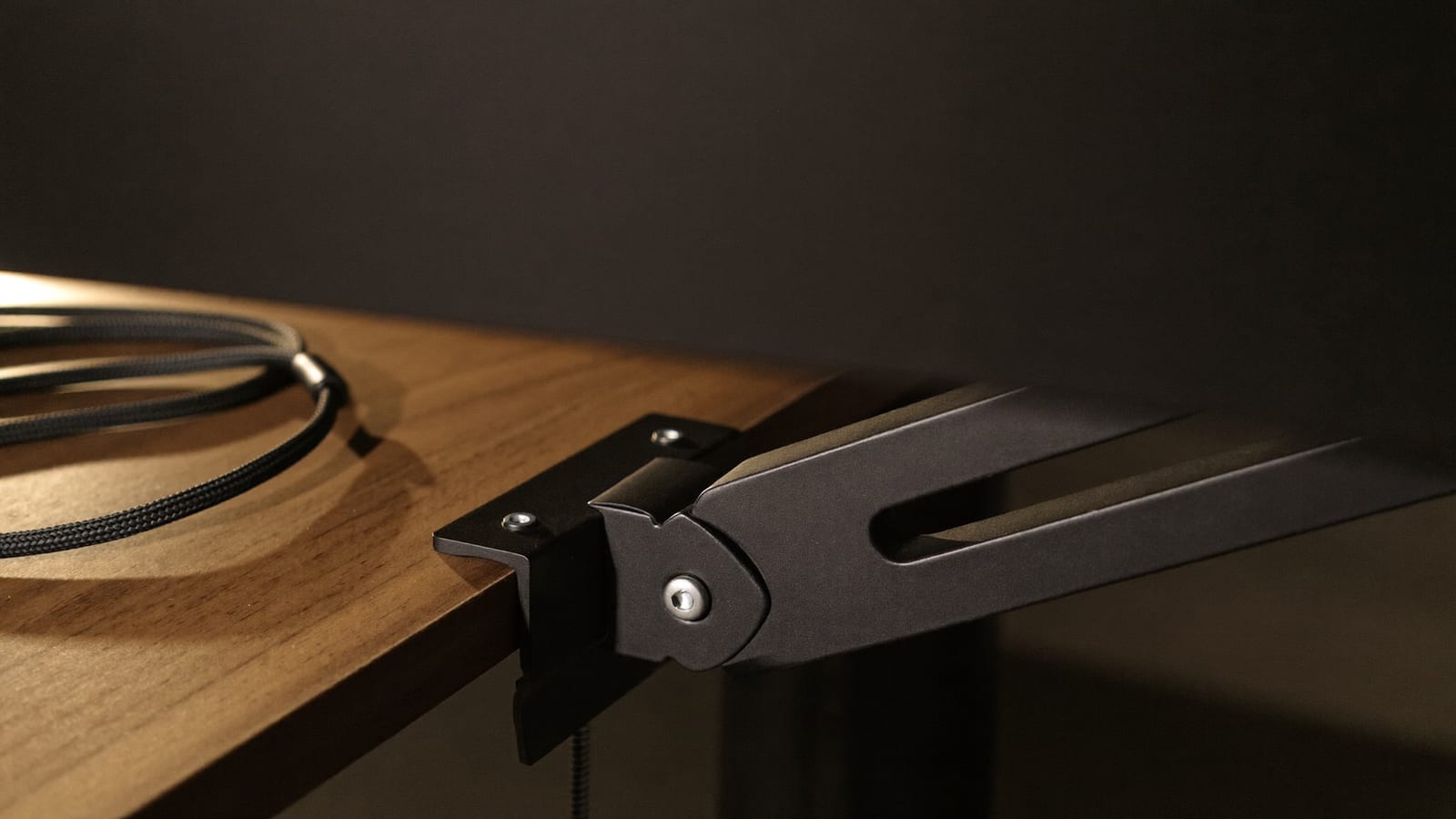
There are two ways out. Buy the model with the adjustable stand, which usually costs a little more, or buy the cheaper panel with VESA holes and put it on a mount. A monitor arm clamps to the desk and moves in every direction that matters. It is the least glamorous purchase on this page and the one people thank me for.
I have seen the alternative. A stack of books under a monitor is a temporary solution that lasts four years.
The four things you are being charged for and will not use
-
Refresh rate above 100Hz.
For documents and video calls, 60Hz is genuinely fine and 75 to 100Hz makes the cursor feel pleasant. Beyond that you are funding a spreadsheet's frame rate. If you game seriously in the same room, that is a different article and a different budget line — decide which machine the monitor is really for.
-
“HDR400.”
This badge means the panel is bright enough to be called HDR and not bright enough to do HDR. Real high dynamic range starts around 600 nits with local dimming. Everything below that is a sticker.
-
Built-in speakers.
They are always bad. They are bad on the expensive ones too. You already own something better.
-
A curve, for productivity.
On a 34-inch ultrawide, a gentle curve genuinely helps because the edges are far away. On a 27-inch monitor it is a styling choice, and it makes straight lines in design work quietly untrustworthy.
The judgment call: one good screen or two cheap ones
This is the question I actually get asked, so here is my ruling.
- One 27-inch 1440p beats two 24-inch 1080p screens for most people. More usable pixels than a single 1080p, no bezel down the middle of your attention, one cable, one power brick.
- Two monitors win when your work genuinely needs two full-screen applications at once and you look between them all day — code and its output, a call on one side and notes on the other. The bezel stops mattering when the two things are separate jobs.
- A 34-inch ultrawide at 3440×1440 replaces a dual setup elegantly and costs about what two decent monitors cost. It is one panel, one cable, and no seam. It is also wide enough that the far corner is a head-turn away.
What I would not do is buy two of the wrong monitor because two is a bigger number. Buy one correct screen now and add its twin next year — matching a monitor later is easy, replacing a mistake twice is not.
If you now know your pairing — 24 with 1080p, 27 with 1440p, 32 with 4K — TCL's monitor range is a reasonable place to start pricing, and it is the range I would point a first-time buyer at because the panel and port lists are published plainly instead of hidden behind marketing. See TCL's current monitor range
Some links on this page are affiliate links. If you buy through them, HowTo: Tech Edition earns a commission at no extra cost to you. It does not change which panel type I would tell you to buy.
Once it arrives and there are two of them on the desk, the physical setup is its own procedure: How to Set Up Dual Monitors at Your Home Office.
Tested on my mom's 2019 laptop, which I am keeping alive out of respect, and on the 24-inch panel I bought with three months of allowance after the 27-inch 1080p taught me the lesson in this article personally.